
Mail templates 2.19
The confirmation a visitor gets after sending a form, and the notification your team gets, can be built from email blocks. A template replaces the standard mail of the forms it is assigned to. Forms without a template keep the standard mails exactly as before.
Mail templates are part of the core since 2.22. They need no module: the email module adds newsletter campaigns and the Brevo contact sync on top, built from the same blocks.
- Panel
/evolve/mailtemplate(until 2.21/evolve/email/templatein the email module, the old address redirects) - Role access developer, admin, content manager, like the forms
- Sent through the site's normal mailer (the same as every other CMS mail), never through Brevo
- Since 2.19 in the email module, 2.22 in the core
Building a template
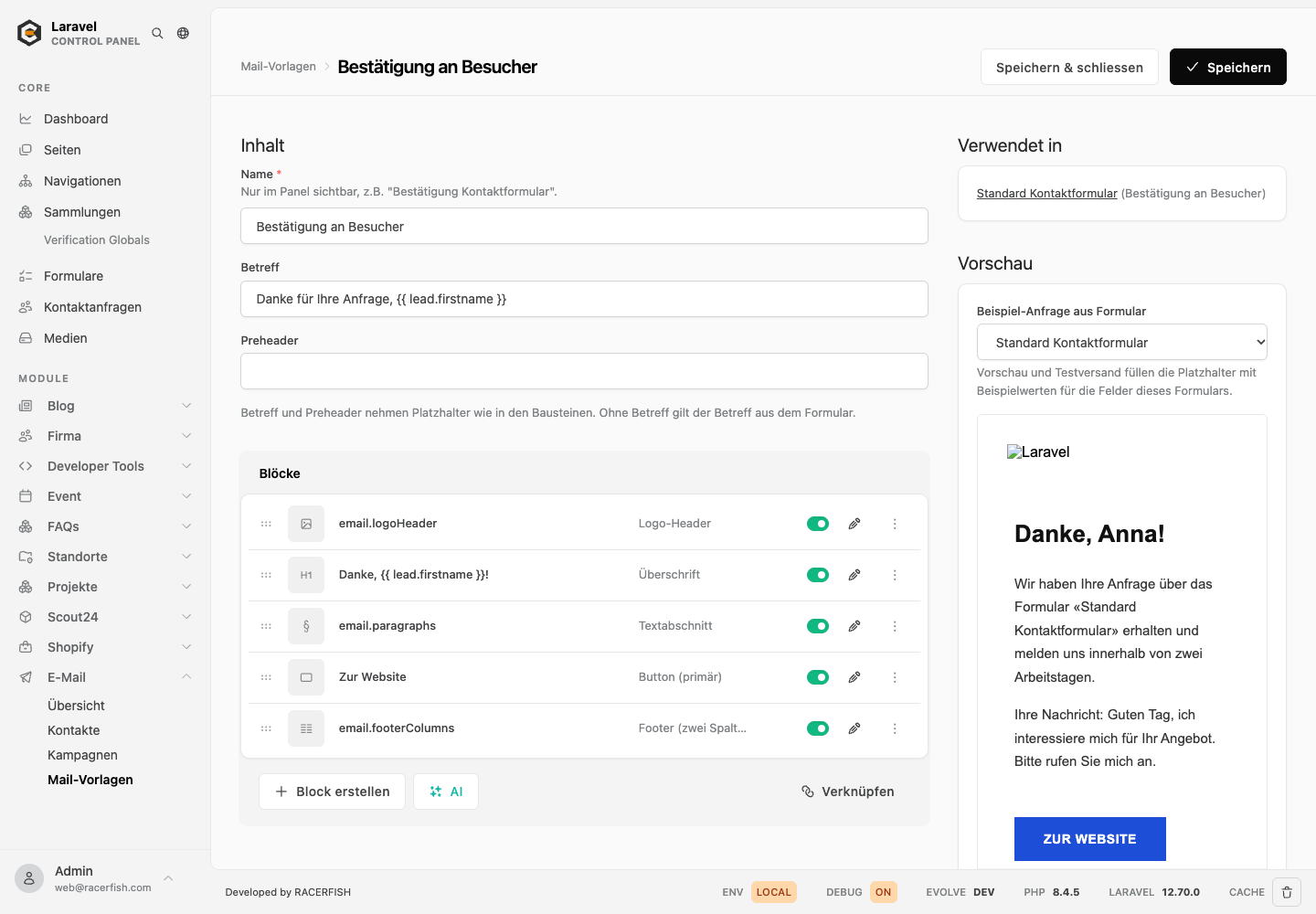
- Open Mail templates in the sidebar (below Forms) and click Create. Give the template a name only you see in the panel, for example "Contact form confirmation", and save. The editor opens.
- Fill the subject and, if you like, the preheader (the preview line in the inbox) for each language of the site. Without a subject the mail takes the subject set on the form.
- Add blocks with Create block, see the email blocks below. One block exists only in templates: Anfrage (alle Felder) lists every field the visitor filled in as a table. It is meant for the notification to your team.
- Write placeholders into any text or link of a block, see below. Hidden blocks (switched off in the list) stay out of the mail but show in the preview, handy for drafts.
- Check the result in the preview and send a test mail, then assign the template to a form.
The email blocks
Templates and campaigns share one set of blocks. They exist only in the mail editors and never appear in the page block picker.
| Block | Purpose |
|---|---|
| Logo-Header | logo at the top |
| Hero-Bild | full-width image |
| Überschrift | headline |
| Textabschnitt | one or more paragraphs |
| Bild | image with optional link |
| Button (primär), Button (sekundär) | call to action |
| Highlight-Band | coloured band with a short message |
| Abstand | vertical spacing |
| Footer (zwei Spalten) | two-column footer with address and links |
| Abmelde-Zeile | the unsubscribe line with the merge tag of the campaign tool |
| Anfrage (alle Felder) | every field of the submission as a table, templates only |
| Kopfzeile 2.22 | a short line at the very top, with a "view in browser" link in campaigns |
| Abschnittstitel 2.22 | a small heading between sections |
| Objektdaten 2.22 | label and value pairs, for example the key facts of an object |
| Ansprechperson 2.22 | greeting, name, phone and mail of the person to contact |
Look of the mails
Colours, width and font come from evolve.mail in config/evolve.php; the two most common values have environment variables:
| Variable | Default | Effect |
|---|---|---|
EMAIL_BRAND_COLOR | #1D4ED8 | Accent colour of buttons and highlights. |
EMAIL_CONTAINER_WIDTH | 600 | Width of the mail body in pixels. |
EMAIL_ASSET_BASE | falls back to APP_URL | Absolute origin for images in the mail. Set it when the site is served from a different host than the one the mail should load images from. |
evolve.mail.theme also holds background, text, divider and footer colours, the font stack, the logo width, alignment (left or center, 2.22) and button-style (square or pill, 2.22). A project that published the email module's config/email.php before 2.22 keeps its theme, dialect and asset-base values, they win over the core defaults.
The layout and the block views can be copied into the project with the publish tag evolve.mail-views (theme/views/vendor/evolve/email). Copies change the look of templates and campaigns alike.
Placeholders
A placeholder is a name in double curly braces. When the mail goes out it is replaced with the value of the submission:
| Placeholder | Value |
|---|---|
{{ lead.firstname }}, {{ lead.lastname }}, {{ lead.fullname }} | the visitor's name |
{{ lead.email }}, {{ lead.phone }}, {{ lead.company }} | contact details |
{{ lead.salutation }}, {{ lead.street }}, {{ lead.street_no }}, {{ lead.zip }}, {{ lead.city }}, {{ lead.country }} | address fields |
{{ lead.remarks }} | the message field |
{{ lead.payload.<field> }} | any other field of the form, by its field name, for example {{ lead.payload.budget }} |
{{ lead.date }} | date and time of the submission |
{{ lead.admin_url }} | link to the lead in the panel (for the notification to your team) |
{{ form.label }}, {{ form.name }} | the form's label and technical name |
{{ site.name }}, {{ site.url }} | the site's name and address |
Forms with a type (built by a developer) can offer more, for example the readable label of a chosen option. The editor lists every placeholder of the form selected for the preview; a click copies it.
Good to know:
- Values are shown as text. If a visitor types HTML into a field, the mail shows the characters and never renders them. Line breaks in the message stay.
- Links. In a button or image link, a placeholder inside a longer address is encoded, so
https://example.com/?mail={{ lead.email }}stays a working link. A link that consists of one placeholder only, such as{{ lead.admin_url }}, is used as it is, but only when its value is a web, mail or phone link (or a path on the site). Anything else leaves the link empty. - Typos stay empty. A placeholder the submission does not know, say
{{ lead.fristname }}, is left empty in the mail, so a visitor never sees curly braces. The preview shows such names in a yellow bar at the top; check the spelling or pick another sample form.
Languages
Templates are translated like pages: switch the language tab in the block editor and fill the blocks, and fill the subject per language. A mail goes out in the language the visitor used on the site. Blocks and subjects without a translation in that language fall back to the site's default language, so a template written only in German still works on a multilingual site.
Preview and test send
The right column of the editor shows:
- Used by: the forms that send this template, with a link to each.
- Preview: the template filled with a sample submission. Pick the form whose fields the sample should contain and, on multilingual sites, the language.
- Test send: sends the same sample to the address you enter (your own by default). The subject starts with
[Test]. The test goes through the site's mailer, so on a staging site it lands at the redirect address from Mail. - Placeholders: all names available for the selected form.
Assigning a template to a form
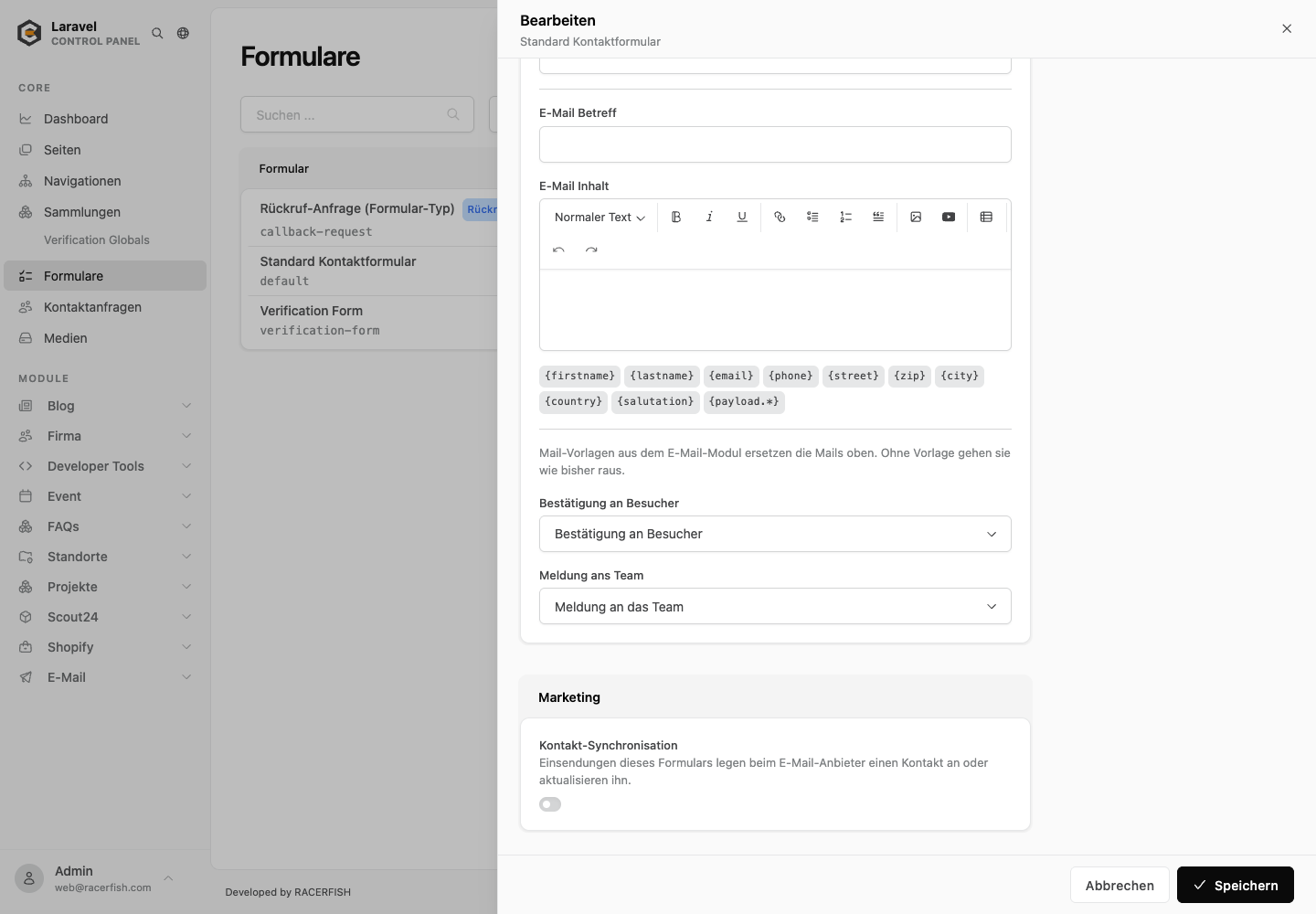
Open Forms, edit the form and scroll to Notifications. Below the subject and body of the standard mail there are two selects:
- Confirmation to the visitor: replaces the standard confirmation. Sender, reply-to address, the copies to carbon copy fields and the files attached to the form stay as configured on the form.
- Notification to the team: replaces the standard notification to the administrator address. Replying to it answers the visitor.
"Standard mail (no template)" keeps the standard mail. The two choices are independent, so a form can use a template for the visitor and the standard notification for the team. Deleting a template switches its forms back to the standard mails.
Verifying
Assign both templates to a test form, submit it on the site and check both mails: names and fields filled in, links working, the language matching the page. Then set both selects back to the standard mail and submit again; the standard mails arrive as before.